
Google Docs is one of the most widely used word processing tools in the US that students, teachers, researchers & professionals rely on to crank out their work. Whether you’re churning out an academic paper, business report or research document, being able to add footnotes in Google Docs is a big plus – it lets you cite sources, provide extra information & make your content look much more professional.
Fortunately, adding footnotes in Google Docs is as easy as snapping your fingers. This guide will walk you through everything you need to know – from step by step instructions, to formatting tips, common got & the pros & cons of using footnotes.
What Are Footnotes in Google Docs?
A footnote is just a little note at the bottom of a page that provides extra information or lets you cite sources connected to the text above.
You’ll most often see footnotes used for:
- Academic papers
- Research projects
- Essays
- Books
- Business reports
- Historical documents
Google Docs automatically numbers your footnotes & sticks them at the bottom of each page.
Why Use Footnotes?
Footnotes are super handy because they let readers see where your information comes from without breaking up the main content.
Benefits of Using Footnotes
- They help you include source citations
- Add extra explanations
- Improve credibility
- Are a must for academic writing
- Keep the document nice & tidy
Lots of schools & universities require footnotes when using citation styles like MLA, Chicago or others.
How to Add Footnotes in Google Docs
Adding a footnote only takes a couple of seconds.
Method 1: Using the Insert Menu
Step 1: Open Up Your Document
Head on over to Google Docs & fire up the document where you want to add a footnote.
Step 2: Put Your Cursor In Place
Click right after the sentence or word where you want the footnote number to appear.
Step 3: Click The Insert Menu
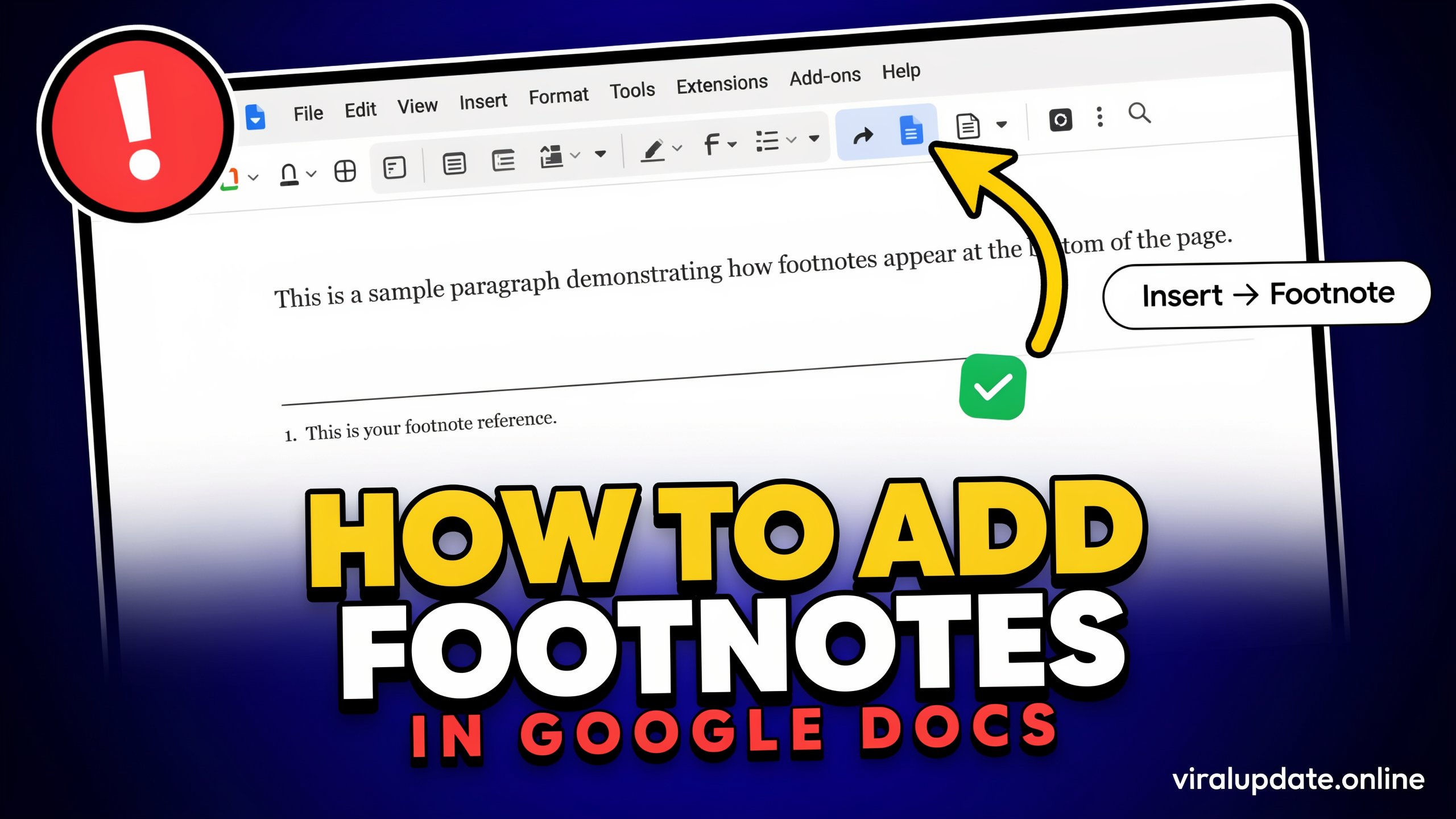
Up at the top go to Insert > Footnote
Google Docs will then automatically pop a little superscript number into your text.
Step 4: Go Ahead & Enter Your Footnote
Down at the bottom of the page, just type in:
- Source information
- References
- Additional explanations
- Whatever else you want to include
Google Docs will take care of keeping the numbering in order for you.
Method 2: Use A Keyboard Shortcut
If you’re a keyboard ninja, you can use a shortcut to add a footnote even faster
Windows Shortcut
Just press Ctrl + Alt + F
Mac Shortcut
Just press Command + Option + F
Google Docs will instantly create a new footnote for you
Formatting Footnotes Properly
Depending on your writing style, footnotes might need different information
Academic Citations
For example, in academic writing you’ll often see footnotes that include:
- Author name
- Book title
- Publisher
- Publication year
- Page number
Example:
John Smith, History of America (New York: ABC Publishing, 2024), 125.
Extra Information
Footnotes can also be used to provide extra explanations that would otherwise interrupt the main text
Example:
¹ The survey was conducted among 2,000 participants across the United States.
How To Edit A Footnote
Editing a footnote is a breeze.
Change The Content
Just scroll on down to the bottom of the page & update the text
Google Docs will automatically save the changes.
Remove A Footnote
Delete the footnote number in the text & Google Docs will remove both the number & the note at the bottom of the page.
How Google Docs Automatically Numbers Footnotes
One of the really cool things about Google Docs is that it’ll automatically number footnotes for you
Google Docs will:
- Add numbers in sequence
- Renumbers notes automatically
- Update numbering if you delete a note
- Keep the formatting consistent
This saves a ton of time when working on long documents
Common Uses for Footnotes
Different users use footnotes for all sorts of things
Students
Students use footnotes to:
- Cite books
- Reference articles
- Avoid plagiarism
Researchers
Researchers add:
- Data sources
- Comments
- Supporting information
Writers
Writers use footnotes to explain:
- Historical facts
- Definitions
- Additional details
Businesses
Companies include footnotes for:
- Legal references
- Financial reports
- Documentation
A Real-World Example
Emily, a college student in Texas, was writing a history research paper using Google Docs.
Her professor required Chicago-style citations.
Instead of sticking long references inside paragraphs, Emily inserted footnotes throughout the paper
As a result:
- Her paper looked much cleaner
- Citations were easier to organize
- Sources looked professionally formatted
- She finished the project faster
Using Google Docs footnotes helped her get a well-structured research paper & a high grade.
Common Mistakes to Avoid
Lots of beginners make simple mistakes when using footnotes
Forgetting to Cite Sources
Missing citations can lead to plagiarism problems
Always reference information taken from books, websites or journals
Using Too Many Footnotes
Too many footnotes can be distracting
Only include notes that add real value
Incorrect Citation Format
Different styles need different formats
Common styles include:
- Chicago Style
- MLA Style
- APA Style
Check your assignment requirements before formatting references
Adding References Inside Paragraphs
Footnotes keep documents looking cleaner
Giving Footnotes a Personal Touch
Google Docs has your back when it comes to automatic numbering – it handles it for you.
But manual numbering can be a problem – its just a recipe for errors
Tips for Using Footnotes Effectively
Keep It Brief When It Comes to Footnotes
Your readers should grasp the gist of the info in no time
Get Your Citation Game On
Make sure you stick to the citation guidelines required by
- The school you go to
- Your University
- Your Employer
- The publication you’re writing for
Double Check Those Sources
Verify :
- Who the authors are
- What year the publication came out in
- What page numbers they are on
Accuracy does wonders for credibility in the long run though
Use Keyboard Shortcuts
Its just faster to use them when editing
Review Footnotes Before Submission
Get a good edit in there, check your formatting and numbering before you submit or publish – make sure its all correct
Pros and Cons of Using Footnotes in Google Docs
Pros
Easy as One Click
Google Docs makes it easy to add them – just click away
Your Done with the Numbers
The system handles the numbering bit for you – no need to worry about it
Professional Look, No Fuss
documents look nice and clean and organized
Your References are Safe
References stay separate from the main text – that’s a big plus
A Go To For Academic Writing
Footnotes support research and requirements for citations
Cons
Overuse is the Enemy
Too many notes can be overwhelming for readers
Styles Vary
Different formatting styles can be super confusing
Can’t Get as Advanced as Elsewhere
Google Docs leaves you with fewer options than dedicated software
Big Footnotes Can Be a Clutter
long notes will clutter up the page – not a great look
Careful Editing is a Must
mistakes can make a difference in the accuracy of your work
When Should You Use Footnotes?
Footnotes are super useful in:
Academic Papers
Students love using them to cite sources
Research Reports
Researchers need them to support their research
Books & Articles
Authors use them to explain things without breaking the flow of the tex
Business Documents
Companies use notes to give disclosures and references
Historical Writing
Historians often add explanations and source information in footnotes
Conclusion
Learning how to add footnotes in Google Docs is an essential skill for students, researchers, writers, and professionals. Google Docs makes the process simple with automatic numbering, keyboard shortcuts, and easy editing. Whether you’re creating academic papers, business reports, or detailed articles, footnotes help organize information, provide proper citations, and improve document credibility. By following proper formatting practices and avoiding common mistakes, you can create professional and well-structured documents with confidence.